Get started
Shorten links from Chrome and Firefox with the browser extension
Install the Shortener.dev extension for Chrome or Firefox, shorten the page you are on in one click, shorten links with right click and check clicks from the side panel.
The Shortener.dev extension puts the link shortener in your browser's side panel. I use it mostly for the boring case: I'm on a page, I want a short link for it, and I don't want to open the dashboard, paste the URL and come back. With the extension it's the toolbar icon, then Shorten link, and the short link is already on the clipboard.
It works in Chrome 116 or newer and Firefox 128 or newer. Edge, Brave, Opera and Vivaldi install it from the Chrome Web Store.
Install the extension
- Open the extension page and click Add to Chrome or Add to Firefox.
- Confirm in the store. Chrome and Firefox both show the permissions before installing. There are four, and none of them lets the extension read pages (more on that below).
- Pin it. New extensions hide behind the puzzle piece icon next to the address bar. Click it, find Shortener.dev and click the pin, so the icon stays in the toolbar.
A welcome tab opens after the install. You can close it.
Sign in
Click the Shortener.dev icon. In Chrome the side panel opens on the right, in Firefox it's the sidebar on the left.
Sign in with the email and password of your Shortener.dev account. If you don't have one, click Create a free account. A small window opens on app.shortener.dev, and once you're signed up you can come back to the panel and sign in. The free plan has 50 short links, 1 domain and 7 days of click analytics.
The panel only signs in with email and password. If you created your account with the Google button on app.shortener.dev, click Forgot password? in the panel to set a password for the same email, then sign in with it.
Shorten the page you are on
Open the page you want to share and click the toolbar icon. The URL of the tab is already in the form.
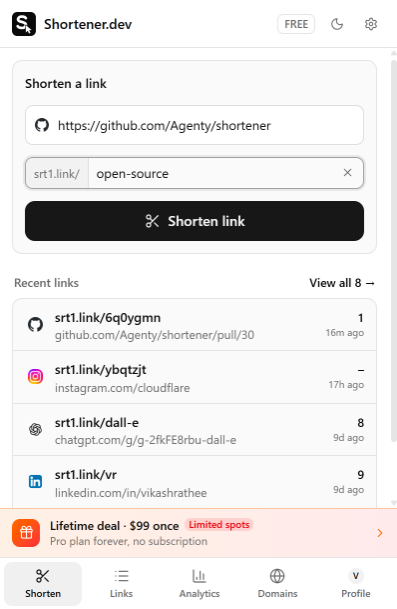
- Click Custom back-half if you want a readable link, and type something like
open-sourceorsummer-sale. Letters, numbers,-and_are allowed. Leave it out and you get a random back-half. - Click Shorten link, or press Enter.
The panel shows Short link created and copied, so you can paste it right away. Below the form, Recent links lists your last five links with their clicks.
The form follows the tab you are on until you type in it. If you've typed your own URL and want the tab's address back, click Use current page above the field.
A short link has to start with https:// or http://. Pages like chrome://extensions or a new tab can't be shortened.
Shorten a link with right click
You don't need to open a page to shorten it. Right click any link, for example in search results or an email in Gmail, and choose Shorten this link - Shortener.dev. On an empty part of a page, the menu shows Shorten this page instead.
The panel opens with that URL in the form. It doesn't shorten it straight away, so you still get to add a back-half before clicking Shorten link.
"Domain not verified"
Shortener.dev only creates short links to domains that are on the global whitelist or verified in your account. YouTube, GitHub, LinkedIn, Amazon and other popular sites are whitelisted, so links to them work right away.
For your own site, the first link you try will fail with a message like example.com is not verified yet and a Verify example.com button. Click it and the Domains tab opens with the domain ready to verify.
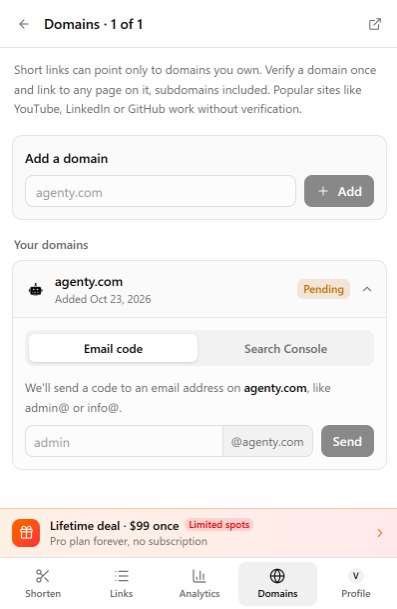
You have two ways to prove you own the domain:
- Email code: type the part before the
@of an address on the domain, likeadminforadmin@example.com, click Send and enter the 6-digit code from that inbox. - Search Console: click Verify with Google and pick the Google account that owns the domain in Google Search Console.
Once the domain shows as verified, go back to Shorten and try again. One domain covers its subdomains too. The Verify a domain page has the details, including what to do when your only mailbox is on Gmail or Outlook.
Find a link you made earlier
Click Links at the bottom of the panel to see all your short links. The search box at the top matches the back-half or the destination, so typing youtube finds every link to YouTube.
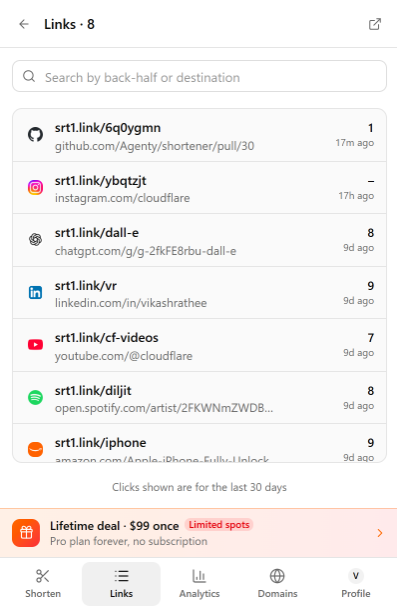
The number on the right of each link is its clicks in the last 30 days. Click a link to open it.
Check clicks on a link
Opening a link from Links or Recent links shows its own page: the short link with a Copy button, where it points, when it was created, and a clicks chart.
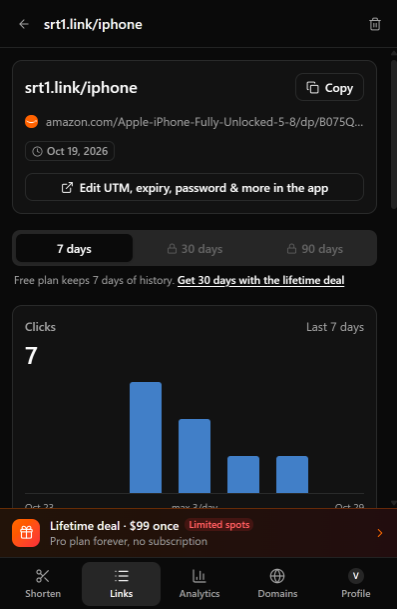
Below the chart you get the same breakdowns as the dashboard: referrers, countries, devices, browsers and operating systems. Pick 7 days, 30 days or 90 days at the top. The free plan keeps 7 days of history, so the longer ranges are locked until you upgrade.
You can delete a link from here with the trash icon. The short link stops working as soon as it's deleted, so double check before you do it on a link that's already printed somewhere.
For editing a link, use Edit UTM, expiry, password & more in the app. It opens the link on app.shortener.dev, where you can add UTM parameters, an expiration date, a password or geo targeting.
Analytics for the whole account
The Analytics tab adds up every link: total clicks per day, your top links, and the same referrer, country and device lists.
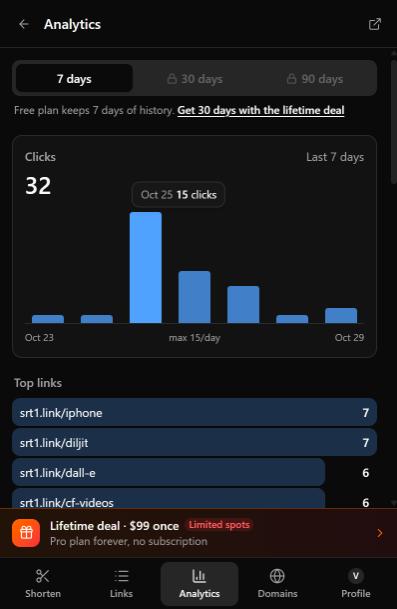
I check it after posting something, to see if the link is getting clicks and from where. For CSV exports or a click by click log, open Click reports in the dashboard. Click analytics explains what each chart counts.
What the extension doesn't do
The panel is for the things you do every day. These still live on app.shortener.dev. The Profile tab has shortcuts to settings, billing, team members and API keys.
- UTM builder, expiration, passwords, social preview and iOS and Android targeting
- QR codes
- Settings, billing, team members and API keys
Permissions and privacy
| Permission | What it's used for |
|---|---|
activeTab | Reading the address of the tab where you open the panel, to fill in the form |
storage | Your sign in token, the theme, and the link you picked with right click |
contextMenus | The two right click menu items |
sidePanel | Showing the panel in Chrome. Firefox uses its sidebar instead |
There are no content scripts and no access to all sites. The extension can't see the content of pages, doesn't run on websites in the background, and doesn't read your history. Nothing goes to Shortener.dev until you click Shorten link. Firefox also asks for access to api.shortener.dev, which is where the panel sends your requests.
The source code is in apps/extension of the GitHub repository if you want to check any of this yourself.
Troubleshooting
The URL isn't filled in. The extension only reads the tab where you opened the panel. If you switch tabs with the panel open, click Use current page, paste the URL, or use right click.
The sidebar closes when I click the icon in Firefox. Firefox toggles the sidebar, so a second click closes it. Click the icon again to bring it back.
"Your session has expired". Sign in again with the same email and password.
I hit the plan limit. The panel shows Plan limit reached when your account has used its links. Links you already made keep working. See pricing or the lifetime deal.
Removing the extension
Right click the toolbar icon and choose Remove from Chrome or Remove Extension in Firefox. Your account and every short link you created stay as they are, and you can still manage them on app.shortener.dev or through the API.