Domains
Manage your domains and the whitelist
See which domains you can shorten links to, browse the global whitelist of popular sites, set a default domain, and remove domains you no longer use.
The Domains page has two tabs. My domains lists the domains you've added, with their verification status. Global whitelisted lists the popular sites everyone can link to without verifying anything.
Check the global whitelist
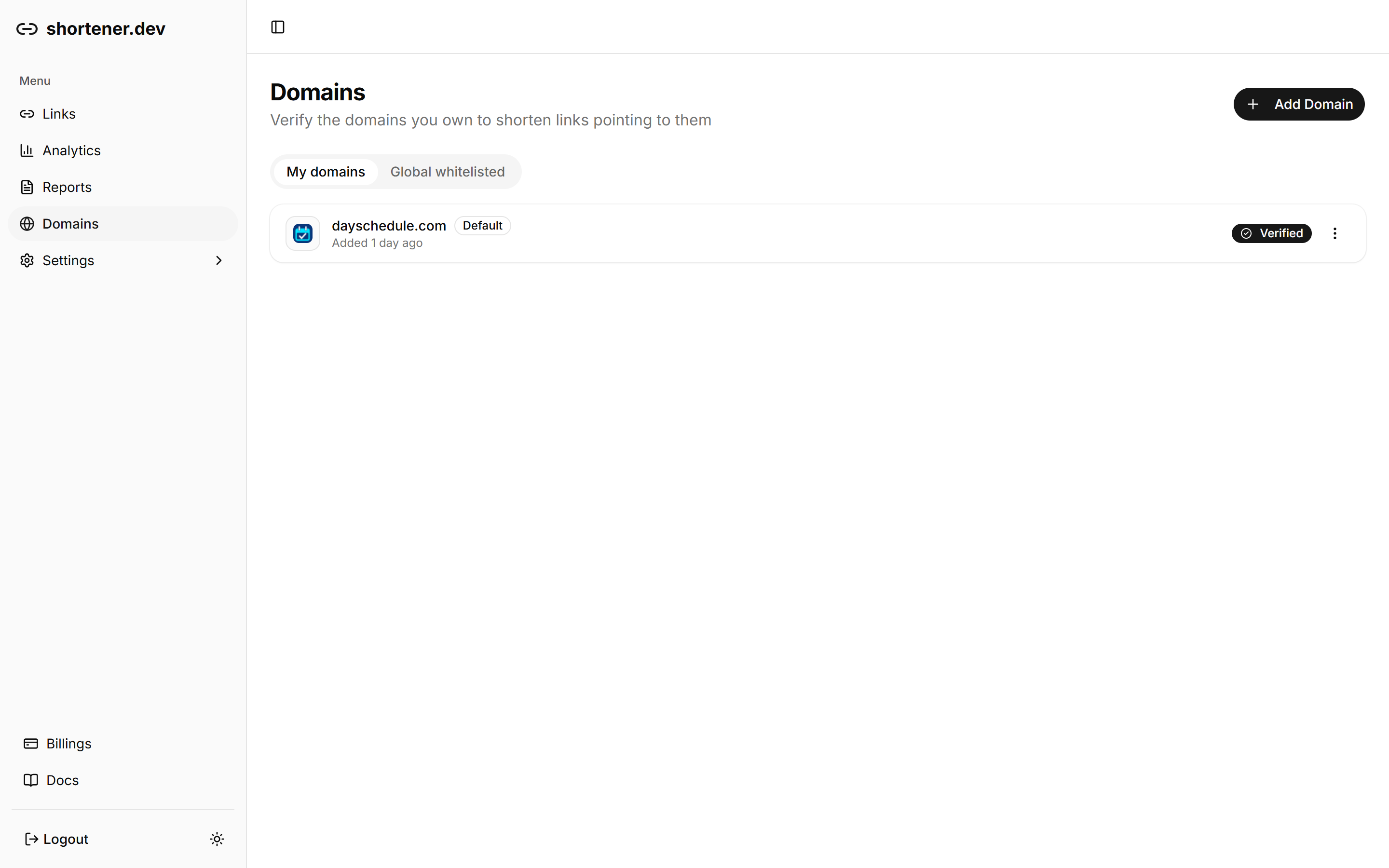
Open the Global whitelisted tab to see which domains work without verification. These are well-known sites such as social networks, video platforms, app stores and large online stores. Each entry covers its subdomains too, so youtube.com also allows m.youtube.com.
Use Search domains to check a specific site. If a domain isn't on the list and it isn't yours to verify, you can't shorten links to it.
Set a default domain
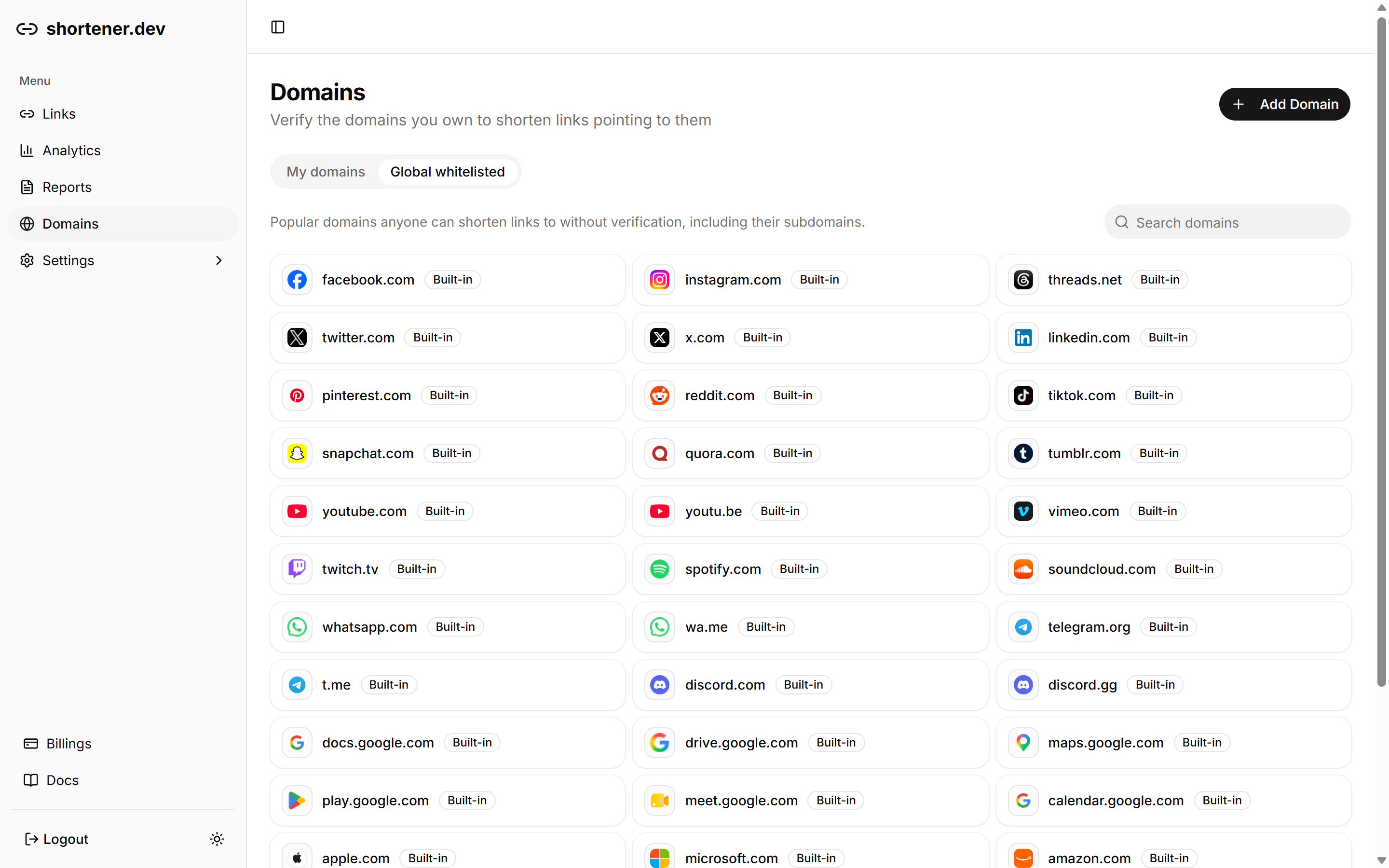
Click the menu next to a domain in My domains and choose Set as default. The domain gets a Default badge. Choose Unset default from the same menu to remove it.
Remove a domain
- Click the menu next to the domain and choose Remove.
- Confirm with Remove.
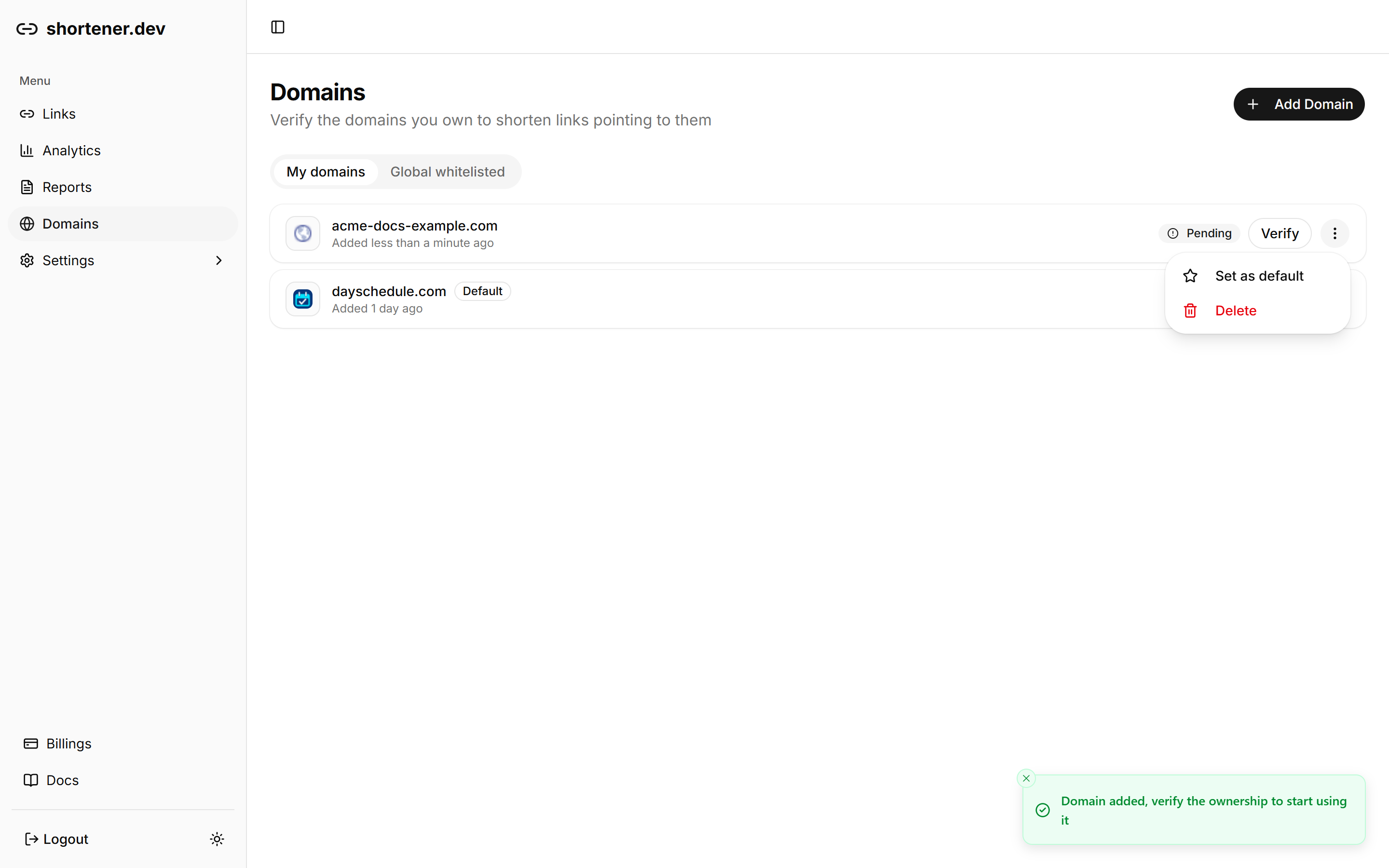
After you remove a domain, you can't create new short links to it until you add and verify it again. Existing short links keep redirecting.
The number of domains you can add depends on your plan, and removed domains still count towards that limit. Adding a removed domain again restores it without using another slot. Upgrade your plan to add more domains.
Why a link was blocked
When a short link can't be created, the error message tells you which check failed:
| Error | What to do |
|---|---|
Domain not verified: example.com | Add and verify the domain. Remember that iOS, Android and geo targeting URLs are checked too. |
blocked | The destination is on a blocked domain or top-level domain, or it points to a .dat or .bat file. These can't be shortened, even when verified. |
url: Invalid URL | Include the full URL with https://. |
If you think a domain is blocked by mistake, contact us.