Domains
Verify a domain to shorten links to your website
Add your domain to Shortener.dev and verify you own it with an email code or Google Search Console, so you can create short links to any page on it.
Shortener.dev only shortens links to domains that are verified in your account or on the global whitelist. That check keeps short links from being used for phishing and spam. Popular sites like YouTube, LinkedIn, Amazon and Google Play are whitelisted already. For your own website, add the domain and prove you own it. It takes a couple of minutes.
A verified domain covers all of its subdomains, so verifying example.com lets you shorten links to blog.example.com and shop.example.com as well.
Add your domain
- Open Domains in the sidebar and click Add Domain.
- Enter the domain name without
https://or a path, for exampleexample.com. - Click Add Domain.
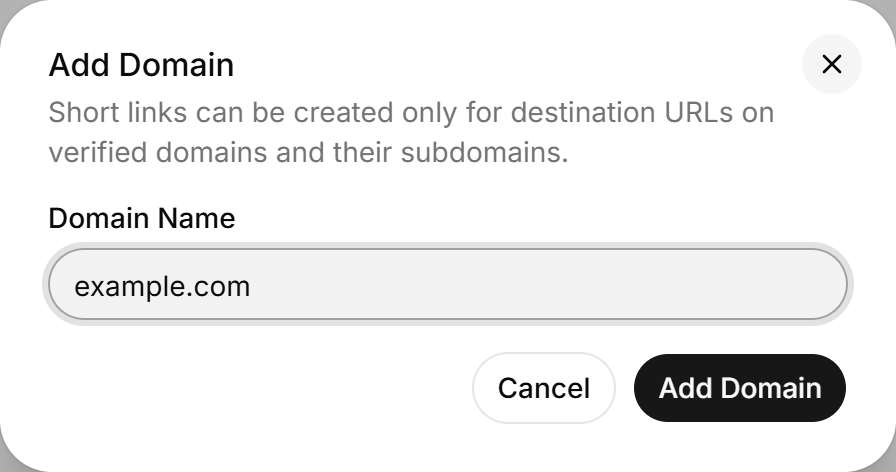
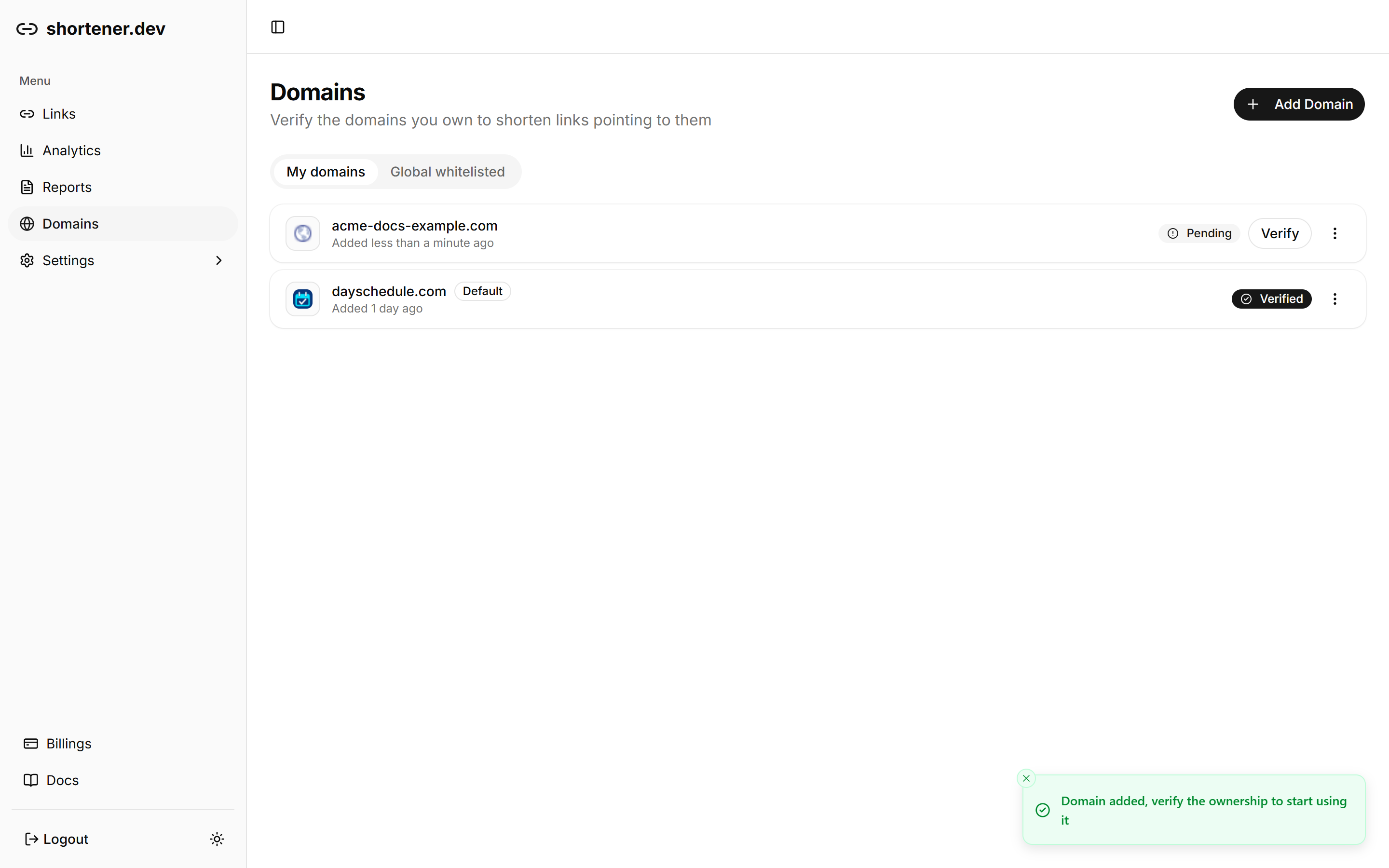
The domain is added to My domains with the status Pending, and the verification dialog opens straight away.
Verify with an email code
This is the quickest option if you have a mailbox on the domain.
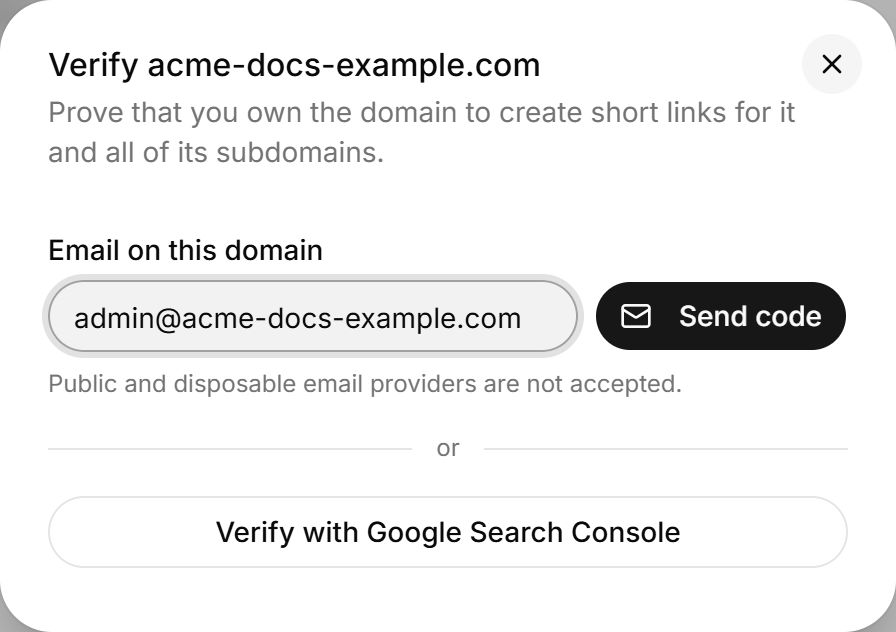
- In Email on this domain, enter an address that ends with your domain, such as
admin@example.comoryou@example.com. - Click Send code.
- Check that inbox for a 6-digit code and enter it in the field. The code is valid for 10 minutes.
- Click Verify.
The domain's status changes to Verified, and you can create short links to it right away.
A few things to know:
- The email must end with
@followed by the exact domain you're verifying. - Public and disposable email providers, such as Gmail or Outlook addresses, are not accepted. Use Google Search Console instead.
- You can request a new code once a minute. If the code expires, or you enter a wrong code too many times, click Use a different email and send a new one.
Verify with Google Search Console
Use this if you don't have an email address on the domain, or if the domain is a public email provider.
- Click Verify with Google Search Console in the verification dialog.
- Sign in with the Google account that owns the domain's property in Search Console.
- Allow Shortener.dev to read your Search Console properties.
You're sent back to Domains, and the domain is marked Verified if the Google account is an owner or a full user of a Search Console property for it. If it isn't, the page shows an error. Add the domain to Google Search Console first, or ask whoever manages it to give your Google account full access.
Verify a domain later
If you close the dialog before finishing, the domain stays on My domains as Pending. Click Verify next to it to pick up where you left off.
Verify domains through the API
The same steps are available in the API reference, under Domains:
POST /v1/domainswith{"domain": "example.com"}to add the domain.POST /v1/domains/{id}/otpwith{"email": "admin@example.com"}to email a code.POST /v1/domains/{id}/verifywith{"code": 123456}to finish.